
Whitelist (only certain players can join)
The whitelist is on the Whitelist tab of your ARK server in the control panel. With it on, only the players you list can join; everyone else is turned away, even if they know the server password.
- Sign in to the control panel at panel.chicagoservers.co and open your ARK server.
- Open the Whitelist tab and turn on Whitelist on.
- Under Player, enter the player's SteamID64 (17 digits starting with 7656119, for example
76561198000000000), their Steam profile link with/profiles/in it, or, for Epic Games players, their Epic ID (32 letters and digits). Click Add. A profile link with/id/and a custom name in it doesn't work: use the SteamID64. - Click Restart at the top of the page. The whitelist applies when the server starts.
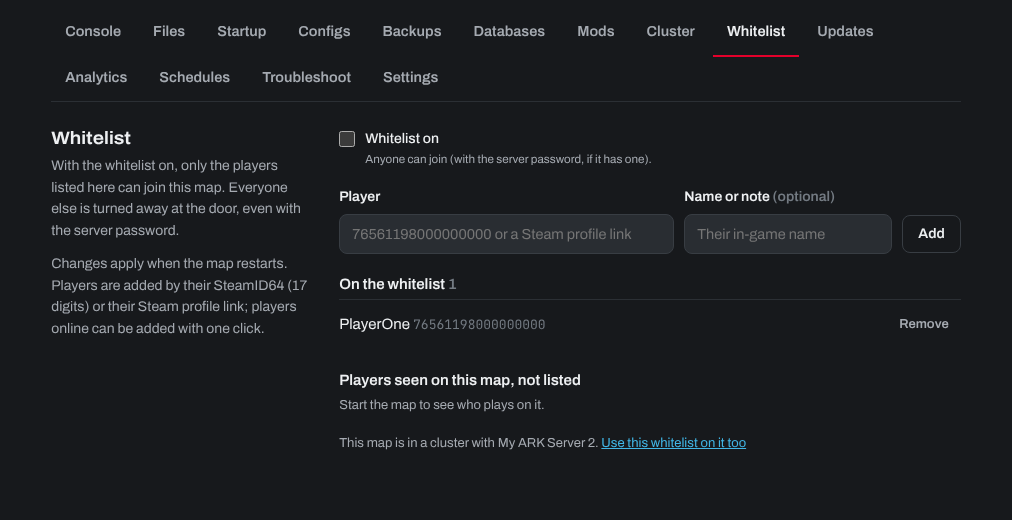
Players who have played on the map are listed under Players seen on this map, not listed: click Add next to one to put them on the whitelist. While the server runs, Who's online? shows who is on now. On a crossplay server, adding players from this list is the surest way, because it shows each player's ID the way the server knows them.
An admin in the game can also let a player in with the console command cheat AllowPlayerToJoinNoCheck <ID>. Those players show on the tab under Also let in by an in-game admin, and you can remove them there.
If the map is in a cluster, the tab offers to use the same whitelist on the cluster's other maps.
Password protection
To make players enter a password to join instead:
- Open the Startup tab.
- Type a password in Join password. Leave it empty for no password.
- Click Save startup, then Restart.
Need help? Open a support ticket and we'll take a look.