
Steam Workshop mods are added on the Mods tab of your ARK server in the control panel. The panel downloads them, keeps them up to date and loads them in the order you choose. There is nothing to upload and no config file to edit.
- Sign in to the control panel at panel.chicagoservers.co and open your ARK server.
- Open the Mods tab.
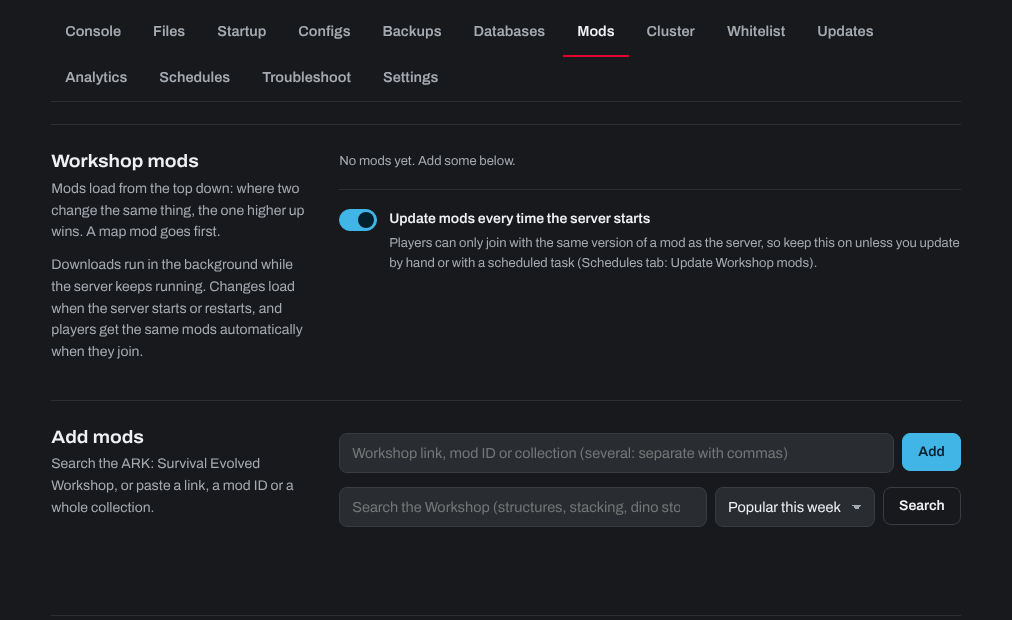
- Under Add mods, paste a mod's Workshop link, its mod ID (the number at the end of the link) or a whole Workshop collection, and click Add. You can also search the ARK Workshop there and add a mod from the results.
- The mods download in the background while the server keeps running. Put them in order with the up and down arrows next to each mod: mods load from the top down, and where two mods change the same thing, the one higher up wins. A map mod goes first.
- Click Restart at the top of the page. The mods load when the server starts, and players download the same mods automatically when they join.
The switch next to a mod stops it loading without removing it from the list. Remove takes it off the list.
Updates: with Update mods every time the server starts on, every restart fetches new versions of your mods. Players can only join with the same version of a mod as the server, so keep it on. To update at a set time instead, add an Update Workshop mods task on the Schedules tab.
Add one mod at a time and check that the server comes back online after each. If it doesn't, that mod doesn't work with the current version of ARK or with one of your other mods: remove it from the list and restart. Mods are made and kept up to date by their authors, so we can't fix a broken mod, but we're happy to check your server itself.
Epic Games players: the Epic Games version of ARK can't use Steam Workshop mods, so Epic players can't join a server that runs mods. Steam players can.
For a map that comes with a mod, click Play this map next to the mod. See How can I change my ARK server map?
Need help? Open a support ticket and we'll take a look.