
In this article we'll explain how to add mods (resources) to your FiveM server. The control panel's Resources tab installs a resource straight from its GitHub page or a .zip link, so you don't need to upload anything.
For this demo, we'll use the popular vMenu trainer: github.com/TomGrobbe/vMenu
From the Resources tab
- Sign in to the control panel at panel.chicagoservers.co and open your FiveM server.
- Open the Resources tab.
- Under Add a resource, paste the resource's GitHub page (for example
https://github.com/TomGrobbe/vMenu, not its Releases page) or a direct link to its .zip file. From a GitHub page, the panel downloads the latest release's .zip (or the code itself if there's no release). Give it a name if you like (resource names are case sensitive), and click Add. - The resource goes in
resources/[downloaded]and the panel adds anensureline for it to server.cfg, so it starts with the server. Restart the server, or typeensure vMenuon the Console tab to start it now.
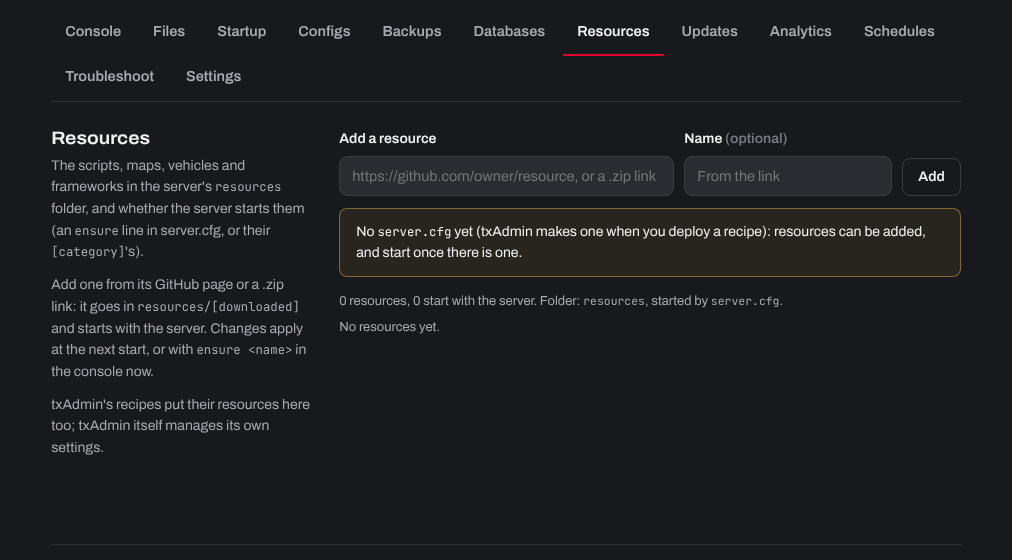
The Resources tab also lists every resource on your server and whether it starts with the server, and shows which folder and server.cfg your server uses. If you deployed a txAdmin recipe, that's the recipe's own folder in txData.
Some resources need more than an ensure line, so check each resource's own install instructions. vMenu, for example, needs exec @vMenu/config/permissions.cfg in server.cfg above its ensure vMenu line. Add it on the Configs tab (choose server.cfg, click Text, then Save) and restart the server.
Uploading a resource yourself
- Download the resource and extract it on your computer.
- Open the Files tab, go to the
resourcesfolder the Resources tab shows and upload the resource's folder (for examplevMenu), or use SFTP: see How to connect to your server's SFTP. - Open the Configs tab, choose server.cfg (if there are several, the one marked In use), click Text and add a line to start it:
ensure vMenu. The name is case sensitive and must match the folder name. Click Save. - Restart the server.
Need help? Open a support ticket and we'll take a look.