
Your VEIN server's settings are in three places in the control panel:
- The Startup tab: the server name, join password and whether it shows in the server browser.
- Game.ini on the Configs tab: the description, admins and anti-cheat.
- Engine.ini on the Configs tab: gameplay settings such as PvP, time, loot and zombies.
Server name, password and listing (Startup tab)
- Sign in to the control panel at panel.chicagoservers.co and open your VEIN server.
- Open the Startup tab and change Server name, Join password or Show in server browser.
- Click Save startup, then Restart at the top of the page.
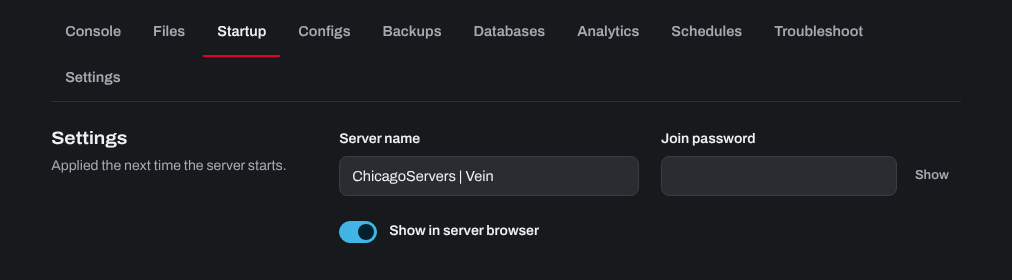
The join password is 4 to 32 letters, numbers, dashes and underscores, and it's case-sensitive. Leave it empty for no password. The player limit and ports are set by the panel to match your plan.
Description, admins and anti-cheat (Game.ini)
- Click Stop at the top of your server's page. VEIN rewrites its files when it shuts down, so changes made while it runs can be lost.
- Open the Configs tab and choose Game.ini.
- Change Description (shown in the server browser), Super admin SteamID64, Admin SteamID64 or Anti-cheat. For admins, see How to make yourself an admin on your VEIN server.
- Click Save, then Start.
The server name, password, player limit and ports in Game.ini are written from the Startup tab every time the server starts, so change those on the Startup tab, not in the file.
Gameplay settings (Engine.ini)
VEIN's gameplay settings are console variables whose names start with vein.. Admins can change many of them live in the game: press \ to open the admin menu and go to Config. To set them as the server's defaults, put them in Engine.ini:
- Click Stop at the top of your server's page.
- Open the Configs tab and choose Engine.ini (gameplay console variables).
- Find the
[ConsoleVariables]line (add it if it isn't there), and under it add one line per setting, asvein.Setting=Value. - Click Save, then Start.
For example, this turns PvP off, slows the clock to half the normal speed, gives more loot and doubles XP:
[ConsoleVariables]
vein.PvP=0
vein.Time.TimeMultiplier=8
vein.Scarcity.Difficulty=1
vein.Stats.XPMultiplier=2
Some common settings:
vein.PvP: can players hurt each other?1on (the default),0off.vein.BuildObjectPvP: can players damage other players' bases?1or0.vein.Time.TimeMultiplier: how fast the game clock runs (normally16).vein.Scarcity.Difficulty: loot, from0(no scarcity) through2(standard) to4(impossible).vein.Stats.XPMultiplier: XP earned (1is normal).vein.AISpawner.SpawnCapMultiplierZombie: how many zombies can be around.
The full list is in Advanced Vein Server Config Parameters. On/off settings take 1 and 0. Avoid extreme values, which can make the world unstable, and make a backup on the Backups tab before big changes.
Need help? Open a support ticket and we'll take a look.