
Step 1: Get a Cfx.re license key
To get started with your FiveM server, you need a Cfx.re license key (also called a server registration key). Hosts can't make one for you: it's tied to your own Cfx.re account.
- Sign in to the Cfx.re Portal at portal.cfx.re with your Cfx.re (forum) account. The old Keymaster site (keymaster.fivem.net) now takes you there.
- Open Servers, then Server Registration Keys, and create a new key. Fill in what the form asks for and generate the key.
- Copy the key (it starts with
cfxk_).


For a step-by-step guide, see How to get Your Keymaster License for Fivem.
Note: FiveM servers can have up to 48 players for free. More than that needs a Cfx.re Element Club subscription (from the Cfx.re Portal) on the account that owns the key, and your server can't have more players than the slots you bought from us.
Step 2: Add the key and open txAdmin
- Sign in to the control panel at panel.chicagoservers.co and open your FiveM server.
- Open the Startup tab. Paste your key into Cfx.re license key and click Save startup.
- Click Start at the top of the page, then click the txAdmin button next to it. txAdmin opens in a new tab, already signed in: there's no PIN to enter and no account to link. (The key button next to it shows the txAdmin login, if you'd like to sign in yourself from another device.)
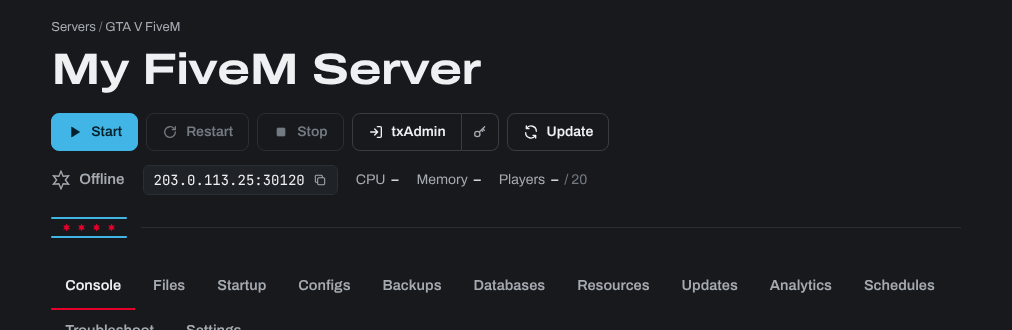
txAdmin is Cfx.re's own web manager for FiveM servers. It runs on top of our control panel. The first time it starts, it runs your server's own server.cfg straight away, so your server is up without going through txAdmin's setup.
Step 3 (optional): Deploy a recipe such as QBCore or ESX
txAdmin's recipes set up a whole framework for you. To use one:
- If the recipe uses a database (QBCore and ESX do), create one first on the Databases tab (see below) and restart the server, so txAdmin's setup can fill in the database details for you.
- In txAdmin, use Reset FXServer Settings and confirm. This doesn't delete any files: it brings back txAdmin's setup.
- Follow the setup. Give the server a name and choose Popular Recipes, then the recipe you want.


- Leave the data location as it is: the recipe goes in its own folder in
txData.


- When asked for your license key, check it's your key from Step 1 (txAdmin fills in the one on the Startup tab).

- Check the server.cfg settings it shows, then click Save & Run Server.
You don't need to change the ports or the server's endpoints: the control panel keeps them right for you, and txAdmin won't let the player slots go above the slots you bought. The recipe's server.cfg is listed on the Configs tab (marked In use), and its resources are on the Resources tab.
MySQL database (not always needed)
Some resources (such as ESX and QBCore) store their data in a MySQL database. ChicagoServers includes one free database with each server!
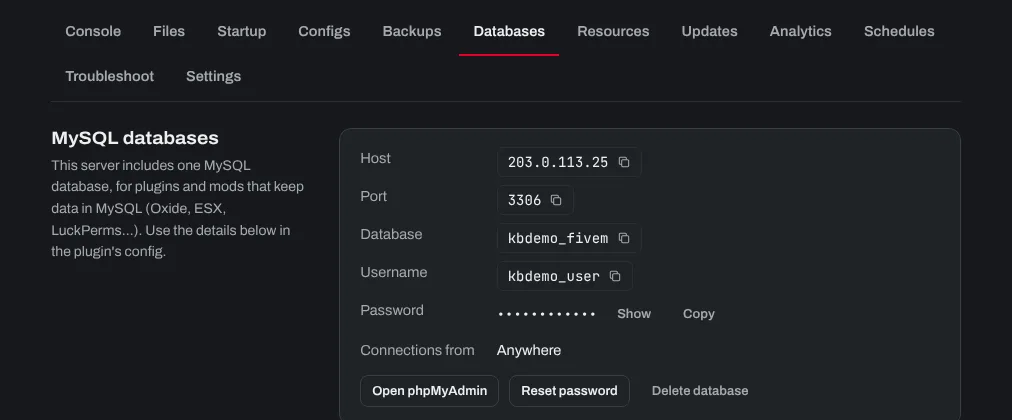
- In the control panel, open your server's Databases tab.
- Type a name for the database and click Create database.
- The tab then shows the database's details (host, port, database name, username and password). Use these in your resource's or recipe's database settings.
Need help? Open a support ticket and we'll take a look.