
You can upload your existing world as a .zip file on the control panel's Files tab, or drag the world folder to your server with an SFTP program (see How to connect to your server's SFTP).
With the Files tab
- On your computer, put your world folder (and its
_netherand_the_endfolders, if your server has them separately) in a .zip file. - Sign in to the control panel at panel.chicagoservers.co, open your Minecraft server and click Stop.
- Open the Files tab. Click Upload and choose the .zip file, or drag it onto the page.
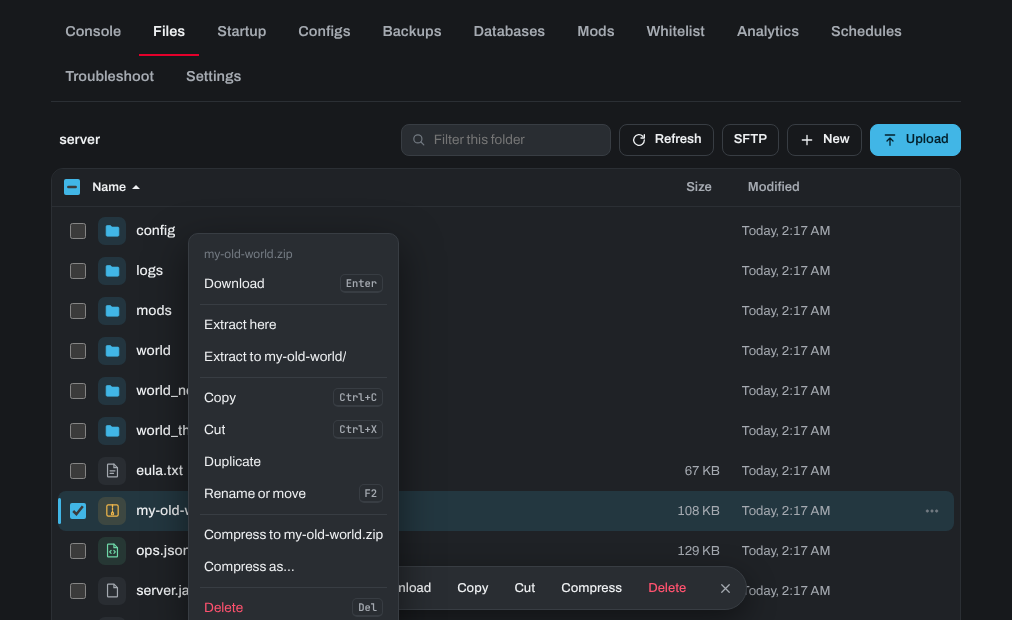
- Right-click the uploaded .zip file and choose Extract here. Your world folder appears in the list.
- Open the Configs tab, choose Server properties and set World name (folder) to the name of the world folder you just extracted. Click Save.
- Click Start. Your world is now live!
Your server's old world stays in its own folder, so you can switch back by changing World name (folder) again. Once your world works, you can delete the .zip file.
If you need any help or your world isn't loading correctly, our team is happy to help with world migrations! Open a support ticket.