
Using the control panel's Wiper
- Sign in to the control panel at panel.chicagoservers.co and open your Rust server.
- Open the Wiper tab.
- Pick what to wipe: Map wipe (the map and saves), Map and blueprints, or Full wipe (the map and all player data, like a brand-new server with your settings kept). Or tick exactly the things you want: Map and saves, Blueprints, Deaths, Player identities, Player states or Rust+ tokens (Rust+ app pairings).
- Click Wipe. The server stops, the files are deleted, and it starts again by itself if it was running. The console lists every file deleted.
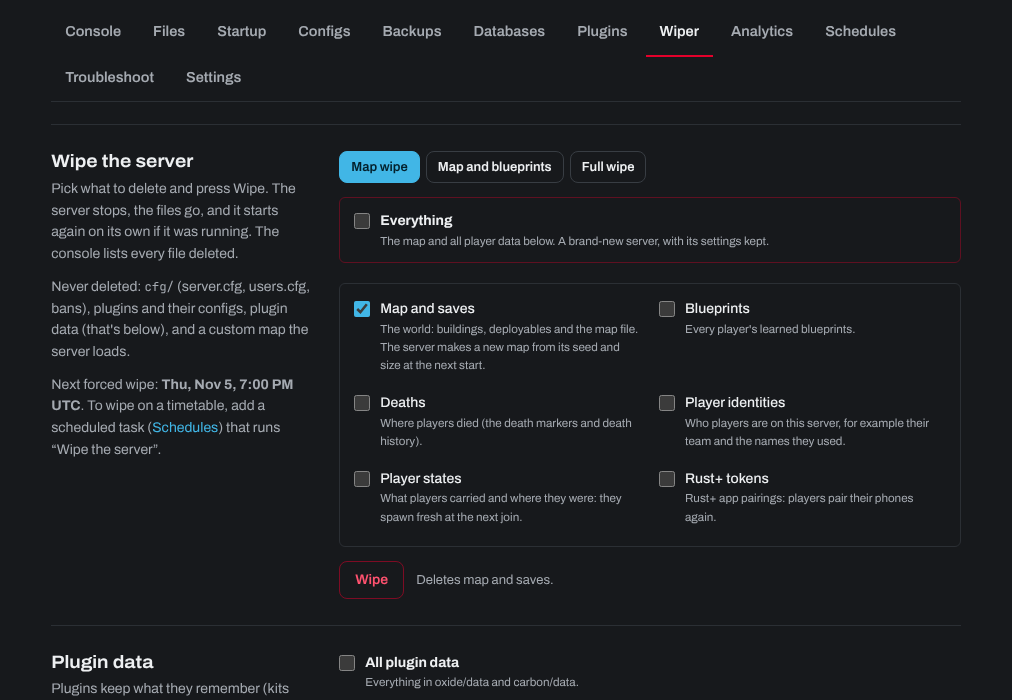
Your settings are never touched: the cfg folder (server.cfg, users.cfg and bans) and your plugins and their configs all stay. A custom map set in Custom map URL on the Startup tab is kept: it's downloaded again from its link when the server starts. Plugin data (kits used, homes, economy balances, clans and so on) can be wiped separately under Plugin data on the same tab.
Forced wipe day
Facepunch releases a Rust update on the first Thursday of every month, usually around 7 PM UK time (2 PM US Eastern). Every server has to take the update, and the update wipes the map. Blueprints are only wiped when Facepunch says so. The top of your server's page shows Next forced wipe.
Wipe on a timetable
- Open the Schedules tab and give the task a name.
- Under When, choose On days of the week and tick Thursday for a weekly wipe, or Once with a date for a single wipe (for example the next forced wipe). Set a time after the update is out.
- Under Steps, choose Update the game (Steam). Then add a step Install a game update and choose Wipe the server in the list next to it, then set what it wipes (yes or no for each).
- To clear plugin data at the same time, add another Install a game update step and choose Wipe plugin data.
- Click Add task.
For more on scheduled tasks, see How to schedule automatic restarts, messages, backups and updates.
Changed your mind? The Backups tab can restore a backup from before the wipe.
Need help? Open a support ticket and we'll take a look.