
Sign in to the control panel at panel.chicagoservers.co and click a server under Your servers. The top of its page has everything you need day to day.
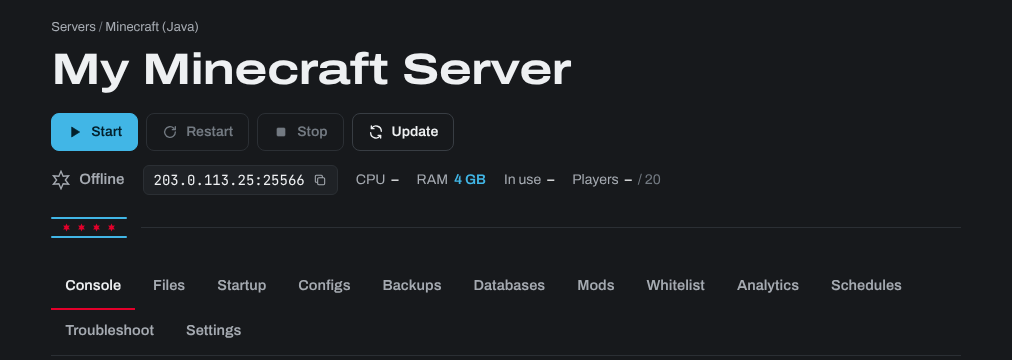
- Start, Restart and Stop: Stop saves the world first and shuts the game down properly. If the server is frozen and won't stop, a Kill button appears, which ends it without saving.
- The address (IP and port): click it to copy it. This is what players connect to on most games. Some games join another way, such as Windrose's invite code or the Join code shown here for Valheim with crossplay on.
- CPU, Memory and Players: what the server uses right now. CPU is in cores (1.00 means one full core busy). Minecraft shows its RAM and what's In use.
- Who's on: click it to see the players online, on games that report their names.
- The Steam update bar (Steam games): whether a game update is out, Update now, Validate and, on games that have them, the Branch button. Games that aren't on Steam have an Update button next to Stop instead. See How to update your server and switch game versions.
The console
The Console tab shows the server's output as it runs. Type a command at the bottom and press Send: the panel passes it to the server (over RCON where the game needs it), so you don't need an RCON tool. The text under the box gives examples of commands for your game.
Some games have no server console: Valheim, Vein, Enshrouded, Satisfactory and Windrose. Their Console tab shows the output only, and admin commands are run in game.
The tabs
- Files: your server's files, and its SFTP login.
- Startup: the server's name, map, passwords and other start settings, and its ports under Network.
- Configs: the game's config files, as fields or as text.
- Backups, Databases, Schedules, Analytics and Troubleshoot.
- Game tabs such as Mods, Plugins, Resources, Whitelist, Cluster, Wiper or Updates, for the games that have them.
- Settings: the server's name in the panel, keep-alive, file checks and reinstalling.
Sub-users only see the tabs their permissions allow.
Keep-alive (Settings tab, for the server's owner): every 5 minutes the panel checks that your server answers. If it froze or crashed, it's restarted for you. Stopping it from the panel keeps it stopped. Not every game has it (BeamMP doesn't), and it can't check a Valheim server with crossplay on.
Need help? Open a support ticket and we'll take a look.