
Valheim mods are BepInEx plugins from Thunderstore, the same ones r2modman and the Thunderstore app install. The Mods tab installs them with one click.
- Sign in to the control panel at panel.chicagoservers.co and open your Valheim server.
- Open the Mods tab. Under Add a mod, find the mod and click Install. BepInEx and the libraries a mod needs (such as Jötunn) are installed with it. For a mod that isn't in the list, paste its Thunderstore link or name under Any other Thunderstore mod and click Install.
- Restart the server. Mods load when it starts.
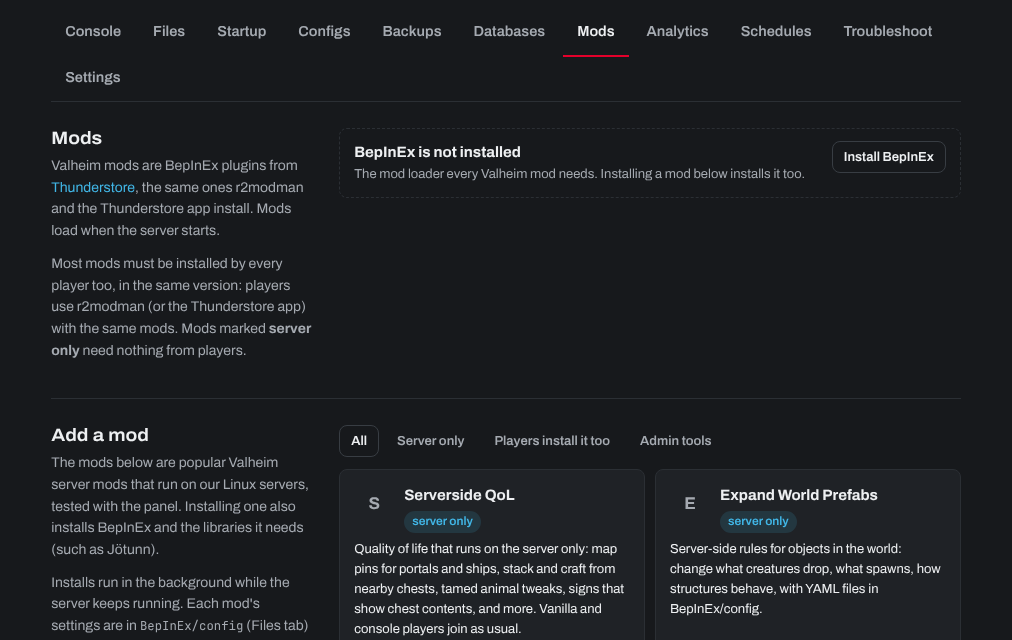
- Mods marked server only need nothing from players.
- Most mods must be installed by every player too, in the same version: players use r2modman or the Thunderstore app with the same mods.
- Console players (Xbox, PlayStation 5, Switch 2) can't install mods. On a server with crossplay, use only server only mods, or console players can't join.
- After a Valheim update (such as Valheim 1.0), mods may stop working until their authors update them. Update them on the Mods tab, and players update theirs too.
- A mod's settings are in
BepInEx/configon the Files tab, after the server has started with it once. - Load mods (BepInEx) on the Startup tab: switch it off to start the server without mods (they stay installed).
For Valheim Plus, see How can I install Valheim Plus onto my server?
Need help? Open a support ticket and we'll take a look.