
Admins on a Valheim server are listed by their player ID in the server's adminlist.txt file. Since Valheim 1.0, a player ID starts with a platform prefix, and the game shows each player's ID for you.
1. Find your player ID
- On PC: join your server and press F2. The Players list shows each player's name and ID.
- On a console (Xbox, PlayStation, Switch): pause the game and choose Player List.
Copy the ID exactly as shown, prefix included: for example V_ followed by numbers, or X_ for an Xbox player. IDs are case-sensitive.
Steam players can also use their SteamID64 (17 digits starting with 7656119, from steamid.io) with Steam_ in front, such as Steam_76561198000000000. Valheim still accepts this older style.
Don't use a PlayFab ID, or an ID copied from the server's console log: on crossplay servers, those aren't the player's ID and won't work.
2. Add it to the admin list
- Sign in to the control panel at panel.chicagoservers.co and open your Valheim server.
- Open the Configs tab and choose Admins (the server's adminlist.txt file).
- Add each admin's ID on a line of its own. Lines starting with
//are comments. - Click Save, then Restart at the top of the page.
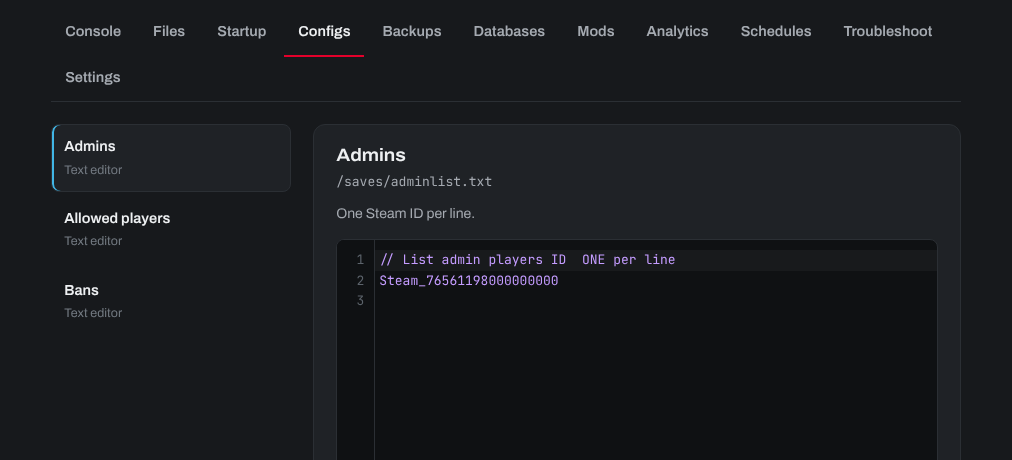
The Allowed players list (permittedlist.txt) and Bans list (bannedlist.txt) on the same tab use the same IDs. Careful: as soon as Allowed players has one ID in it, only the players listed there can join, so add yourself too.
Xbox, PlayStation and Switch players can only join a server with Crossplay turned on (on the Startup tab).
3. Use admin commands
Rejoin the server and press F5 to open the console, then type a command. Valheim's dedicated server has no console of its own, so admin commands are run in game.
| Command | Description |
|---|---|
| help | Lists all the commands you can use |
kick [name/ip/userID] |
Kick the user |
ban [name/ip/userID] |
Ban the user |
unban [ip/userID] |
Unban the user |
| banned | Shows a list of banned users |
| save | Saves the world now |
| ping | Send a ping to the server to get your latency |
| info | Print system info |
Commands still don't work? Check that the ID in the list matches the F2 Players list exactly, that the server was restarted after saving, and that the server and your game are on the same, latest Valheim version.
Need help? Open a support ticket and we'll take a look.