
Your Valheim server's name, world name, password, public listing, crossplay, world modifiers and save settings are all on the Startup tab of your server in the control panel.
- Sign in to the control panel at panel.chicagoservers.co and open your Valheim server.
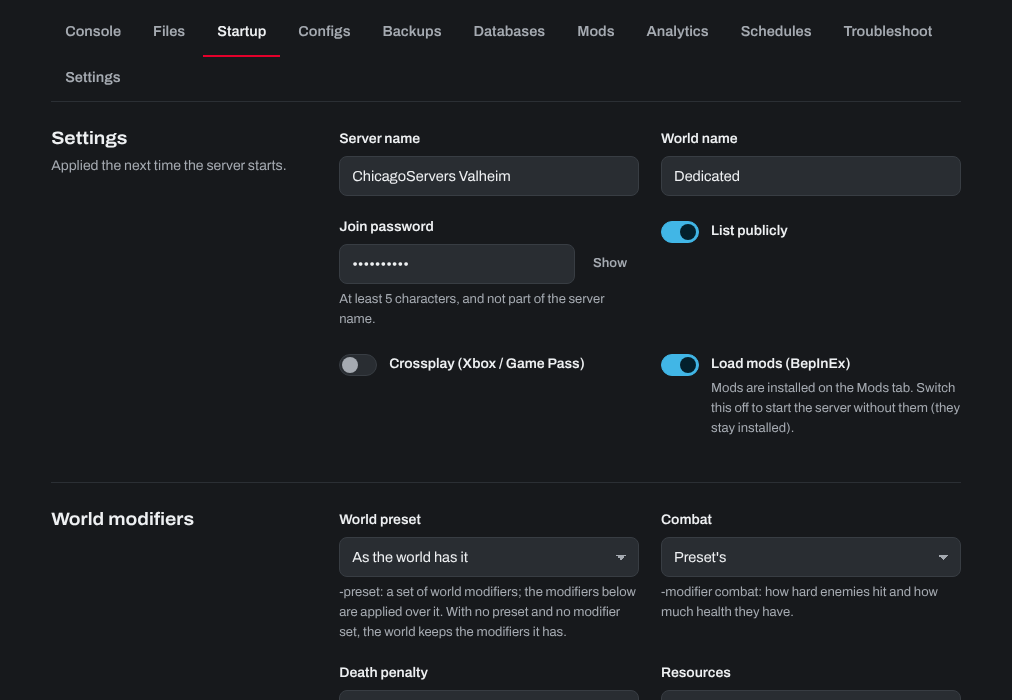
- Open the Startup tab and change the settings to your liking:
- Server name: the name in the server list.
- World name: the world the server plays. A new name starts a new world; the old one is kept.
- Join password: at least 5 characters, and not part of the server name.
- List publicly: show the server in the in-game server list.
- Crossplay (Xbox / Game Pass): let console players (Xbox, PlayStation 5 and Switch 2) and Game Pass players join with a join code.
- World modifiers: a World preset (Casual, Hard, Hardcore and so on) and the Combat, Death penalty, Resources, Raids and Portals settings, plus switches such as No build cost and No map.
- World: how often the world is saved (Save every (seconds)) and how many automatic backups Valheim keeps.
- Load mods (BepInEx): switch it off to start without your mods.
- Click Save startup, then Restart at the top of the page.
Need help? Open a support ticket and we'll take a look.