
The Steam Workshop is the easiest and quickest way to add lots of addons to your Garry's Mod server. You put the addons you want in a Workshop collection, and the server downloads the whole collection when it starts.
Making the collection
First, open your Steam client and log in. Go to Community, then Workshop, and select Garry's Mod. At the top, click Collections, and on the right click Create Collection. Give your collection a name, a short description and an image if you have one.
Select items that work together under "What kind of collection is this", then under categories select server content and click save and continue. On the contents page, click save and continue once again. Go back to the Garry's Mod Workshop and find the addons you'd like on your server (include the gamemode and maps you use). On each addon's page, click Add to Collection, select the collection you just created and click OK. Then, on the Workshop page, select Workshop Files (on the right side of the page), open the Collections tab, click the collection you made and select Publish. Make it Public or Unlisted: the server can't download a private collection.
Now open your collection on the Workshop. Its address looks like https://steamcommunity.com/sharedfiles/filedetails/?id=1234567890: the number at the end is your collection ID (1234567890 in this example).
Adding it to your server
- Sign in to the control panel at panel.chicagoservers.co and open your Garry's Mod server.
- Open the Startup tab and paste the number into Workshop collection ID. Set the Gamemode and Map you want the server to start with, too.
- Click Save startup, then Restart at the top of the page.
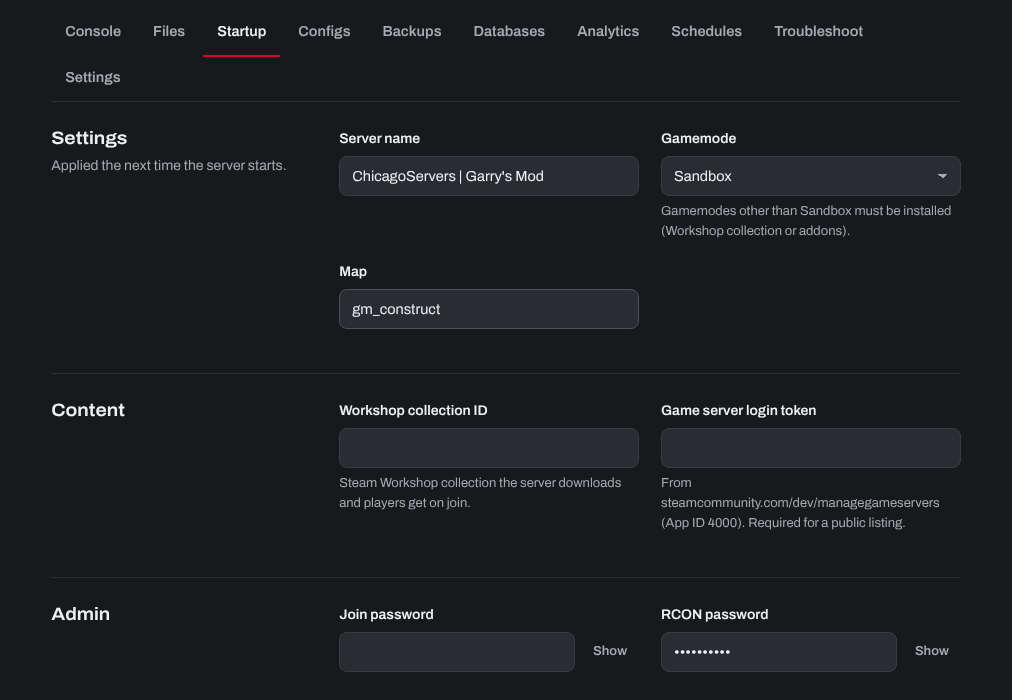
The server downloads the Workshop addons as it starts, and checks them for updates at every restart. How long it takes depends on how many items are in your collection.
Making players download the addons
Players get the server's map from the collection by themselves, and usually its gamemode too. Other addons with models, materials or sounds have to be sent to them, or they see missing textures and ERROR models:
- Open the Configs tab and choose Workshop addons (resource.AddWorkshop).
- Add one line for each such addon, with its Workshop ID:
resource.AddWorkshop("1234567890") - Click Save and restart the server.
Addons that are only Lua code don't need a line.
Need help? Open a support ticket and we'll take a look.