
If you made a custom random world (RWG) with the Nitrogen world generator, you can upload it to your server and play it there.
- Generate the world: download Nitrogen from its official forum post (Nitrogen - A Random World Generator for 7DTD) and generate a world on your PC. Nitrogen is a community tool: check on its forum post that it supports your server's game version. A world made for another version may not load.
- Prefab packs: if you used CompoPack (or another prefab pack) for the world, the server needs the same pack, in the version made for your server's game version. It isn't in the Mods tab's list: install it there with From a link or From a file on the server. See How to install mods on your 7 Days to Die server.
- Stop the server: sign in to the control panel at panel.chicagoservers.co, open your 7 Days to Die server and click Stop.
- Upload the world folder: open the Files tab and go to
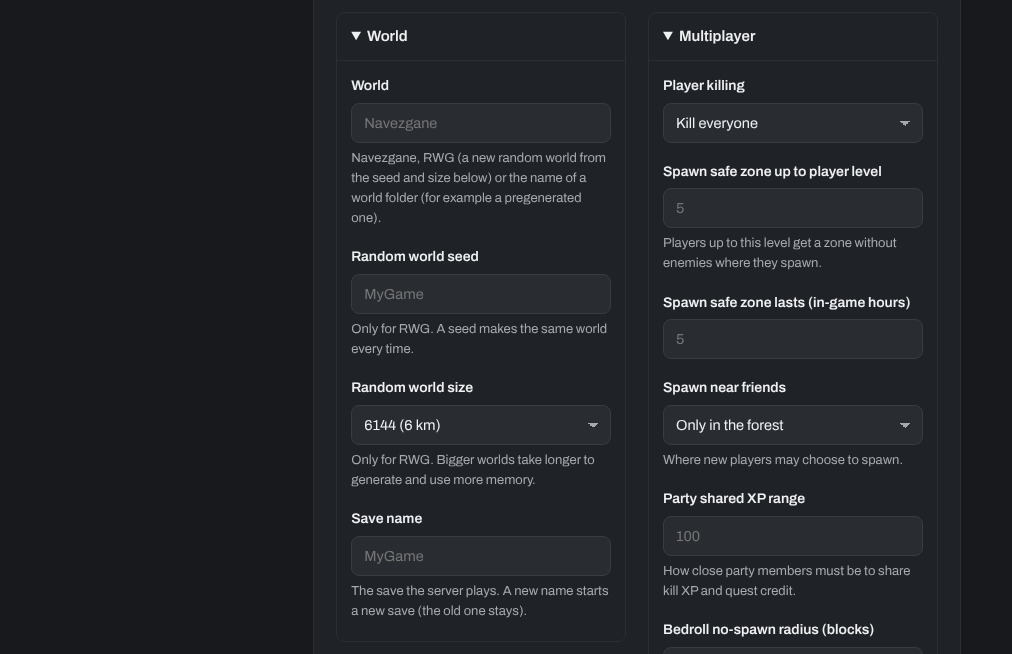
UserData/GeneratedWorlds(make theGeneratedWorldsfolder if it isn't there). Upload the whole world folder Nitrogen made (for exampleNitrogenWorld): drag the folder onto the page, upload it as a.zipand choose Extract here, or use SFTP (see How to connect to your server's SFTP). - Set the world: open the Configs tab, choose Server settings and, under World, set World to the name of the world folder (for example
NitrogenWorld). Set Save name to a new name, so the world starts with a fresh save. Random world seed and Random world size are only used for RWG, so you can leave them. Click Save. - Start the server: click Start, and check on the Console tab that the world loads.
Troubleshooting
- Version mismatch: if the server doesn't load your world, check that it was generated for the same game version as your server.
- Missing files: make sure the whole world folder uploaded, and that its files are directly inside
UserData/GeneratedWorlds/NitrogenWorld, not in a second folder inside it. - Wrong name: the World setting must match the folder name exactly, including capital letters.
Need help? Open a support ticket and we'll take a look.