
Hytale mods and plugins are on CurseForge. The Mods tab of your server searches CurseForge and installs a mod together with the other mods it needs. Players don't install anything: Hytale sends them what they need when they join.
Installing a mod
- Sign in to the control panel at panel.chicagoservers.co and open your Hytale server.
- Open the Mods tab and scroll down to Find mods.
- Search by name, or paste the mod's
curseforge.com/hytale/...link. Kind narrows the list to one of CurseForge's sections (such as Mods, or Bootstrap for early plugins) and Sort orders it. - Click Install next to the mod. The mods it needs are downloaded with it.
- Restart the server to load it.
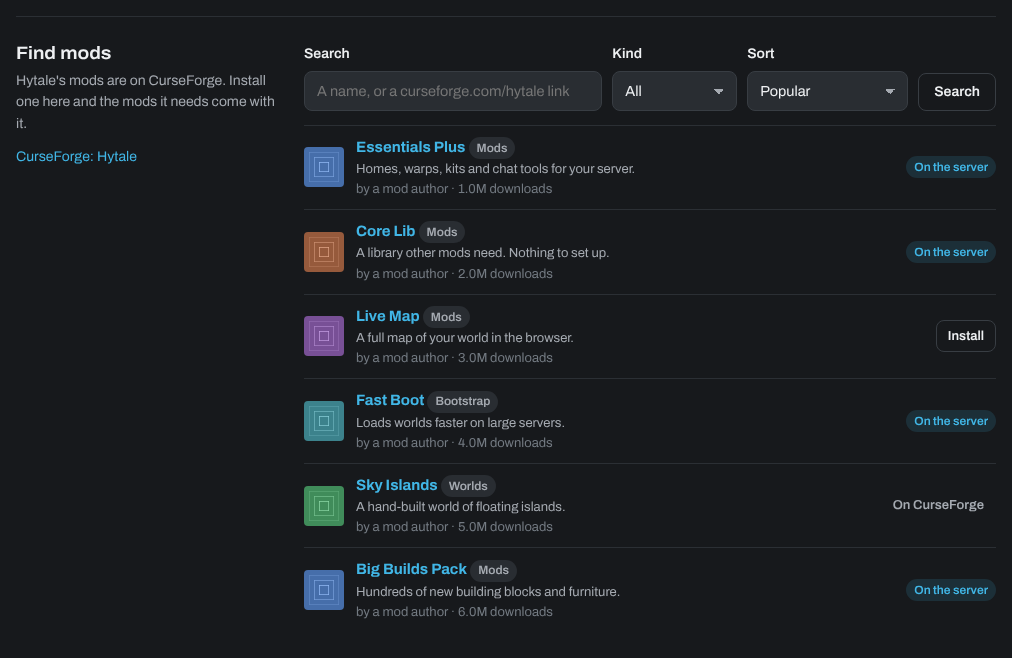
- On the server: that mod is already installed.
- On CurseForge: worlds and prefabs aren't installed from here. For a world, see How to upload a world to your Hytale server.
- A few authors only allow downloads on CurseForge's own site. The panel tells you which one: download it there and upload it to the
modsfolder on the Files tab.
Managing your mods
Under On the server, the Mods tab lists every mod and plugin on your server:
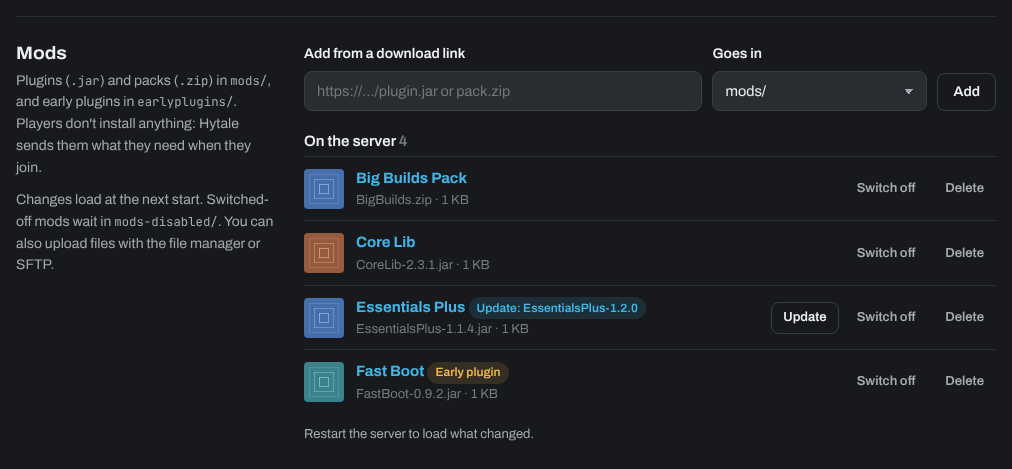
- Update appears when CurseForge has a newer file of a mod you installed from here. Click it to replace the old file.
- Switch off moves the mod to the
mods-disabledfolder, so it doesn't load. Switch on puts it back. - Delete removes the mod's file. A settings folder the mod made stays, in case you add it again.
Changes load the next time the server starts, so restart it after you install, update, switch or delete mods.
Adding a mod from a link or your computer
- Under Add from a download link, paste the link that downloads the
.jaror.zip, choose where it Goes in, and click Add. - Or upload the file into the
modsfolder on the Files tab or with SFTP. See How to use the Files tab (file manager).
Plugins are .jar files and packs are .zip files: both go in mods, unpacked. Early plugins (CurseForge's Bootstrap section) go in earlyplugins instead. They change the game's code as it loads, so only use early plugins from authors you trust.
After a Hytale update, a mod may need its own update before it works again. If the server stops starting after an update, switch off the mods that haven't been updated yet and restart.
Need help? Open a support ticket and we'll take a look.