
Players' games update themselves through the Hytale launcher, and they can't join a server that is on an older version. Your server updates by itself when a new version comes out: players get a minute's warning in chat, then the server restarts on the new version.
Checking the version and updating
- Sign in to the control panel at panel.chicagoservers.co and open your Hytale server.
- Open the Mods tab. Game version shows the version On this server and the Newest one.
- If it says Update available, click Update now. The Update button at the top of the server's page does the same.
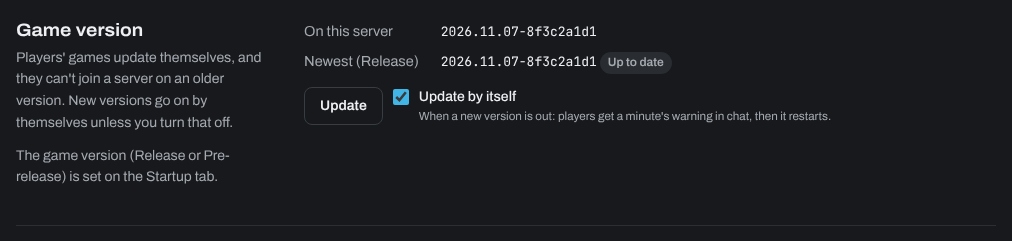
The server stops, gets the new files and starts again if it was running. Your worlds, mods and settings stay as they are. You can follow it on the Console tab.
To update only when you choose, untick Update by itself. Players on the newest version can't join until you update, so leave it on unless you have a reason. You can also update at a set time with an Update the game step on the Schedules tab: see How to schedule automatic restarts, messages, backups and updates.
Switching to the pre-release
Hytale has two versions: Release (the normal game) and Pre-release (the next update, to try early). Your server and its players must be on the same one.
- Make a backup on the Backups tab first. A world played on a pre-release may not open on an older release. See How do I backup my server?.
- Open the Startup tab, set Game version to Pre-release and click Save startup.
- Open the Mods tab and click Update under Game version. The server downloads the pre-release and restarts.
Each player switches too: in the Hytale launcher, open the settings (the gear icon) and change Patchline to Pre-release, then let the launcher update. To go back, set both to Release and update again.
If the server stops starting after an update, a mod may not work with the new version yet. Switch it off on the Mods tab and restart.
Need help? Open a support ticket and we'll take a look.