
Your CS2 server can start on a Steam Workshop map, or host a whole Workshop collection of maps.
- Sign in to the control panel at panel.chicagoservers.co and open your CS2 server.
- Find the map or collection on the Steam Workshop. Its ID is the number at the end of its address (
?id=1234567890). - Open the Startup tab. Under Workshop, paste the ID into Workshop map ID (one map) or Workshop collection ID (a collection).
- Click Save startup, then Restart. The server downloads the map as it starts.
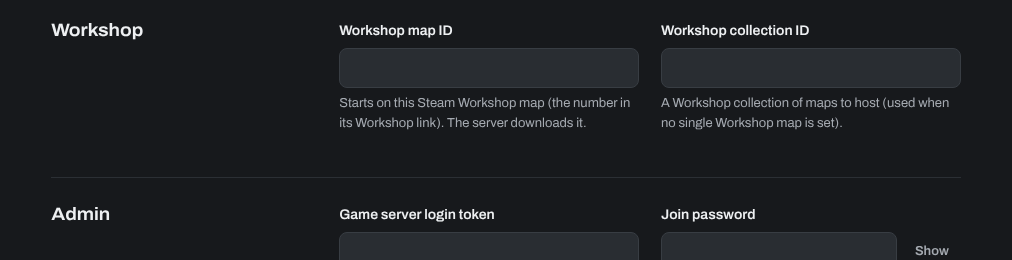
If both are filled in, the server starts on the Workshop map and the collection isn't used: empty Workshop map ID to host the collection. While either is set, the Map setting isn't used.
While the server runs, you can also switch to a Workshop map on the CS2 tab: paste its ID or link under Workshop map and click Play. Tick Start on it from now on to keep it after a restart (this fills in Workshop map ID).
For map votes at the end of a match with Valve's maps, set Map group on the Startup tab, for example mg_active.
Need help? Open a support ticket and we'll take a look.