
The Match section of the CS2 tab runs your server while it's up, without typing console commands.
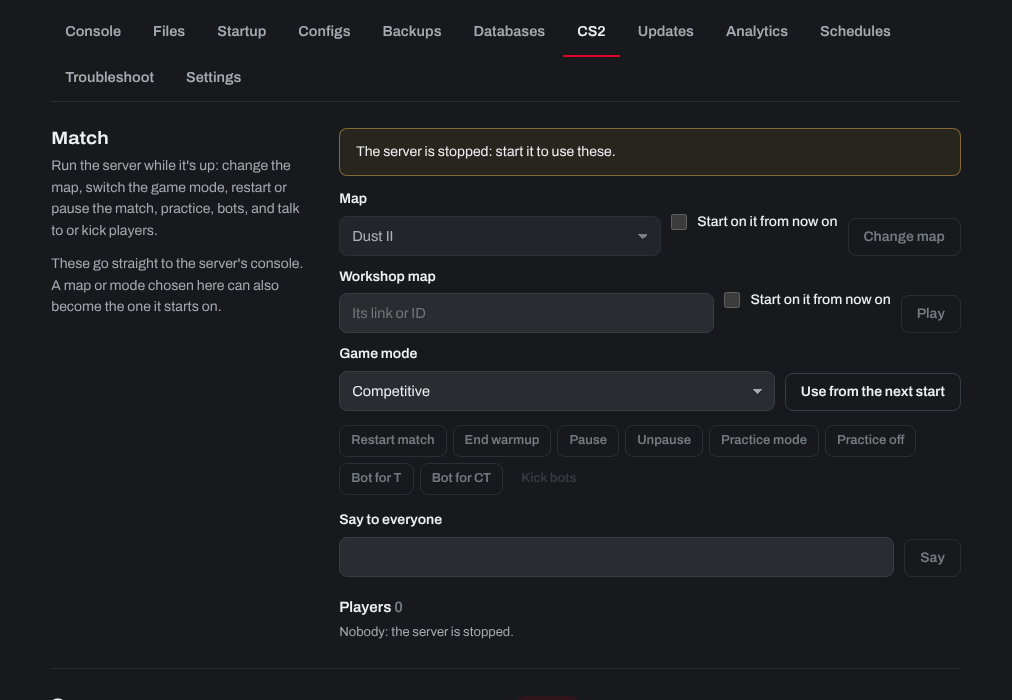
- Map: choose a map and click Change map. Tick Start on it from now on to keep it after a restart.
- Workshop map: paste a Workshop map's ID or link and click Play.
- Game mode: Competitive, Casual, Wingman, Deathmatch, Arms Race or Custom. Click Switch now: the map restarts in that mode, and the server starts in it from then on (it's saved on the Startup tab too). While the server is stopped, the button reads Use from the next start.
- Restart match, End warmup, Pause and Unpause.
- Practice mode: infinite ammo and money, buy anywhere, respawns and grenade previews. Changing the map or Practice off ends it.
- Bot for T, Bot for CT and Kick bots.
- Say to everyone: a message in chat. Players lists who's on, to kick them.
Sign in to the control panel at panel.chicagoservers.co, open your CS2 server and open the CS2 tab. Apart from the game mode, these controls need the server to be running. For removing bots for good, see How to remove bots in your Counter Strike 2 Server.
Need help? Open a support ticket and we'll take a look.