
You can put a world you played on your PC onto your Satisfactory server, either from inside the game or by uploading the save file in the control panel.
Find your save
- Session name: the name the game shows in the Load menu, for example "My world". It's stored inside the save file.
- Save file: the file itself, ending in
.sav, for examplemyworld.sav.
On Windows, save files are in C:\Users\(YourUserName)\AppData\Local\FactoryGame\Saved\SaveGames\(Steam or Epic ID).
Option 1: Upload from the game
- Sign in to the control panel at panel.chicagoservers.co and open your Satisfactory server. Start it if it isn't running.
- In Satisfactory, open Server Manager from the main menu and select your server. You need to be its admin (see How to connect to your Satisfactory Server).
- Open the Manage Saves tab, upload your save from there, then select it and load it.
Option 2: Upload the file in the control panel
- Sign in to the control panel at panel.chicagoservers.co and open your Satisfactory server. Your server needs to have started at least once, so that its save folder exists.
- Open the Files tab and go to
SaveGames/server. Click Upload, or drag the.savfile onto the page. For large files you can use SFTP instead: see How to connect to your server's SFTP.
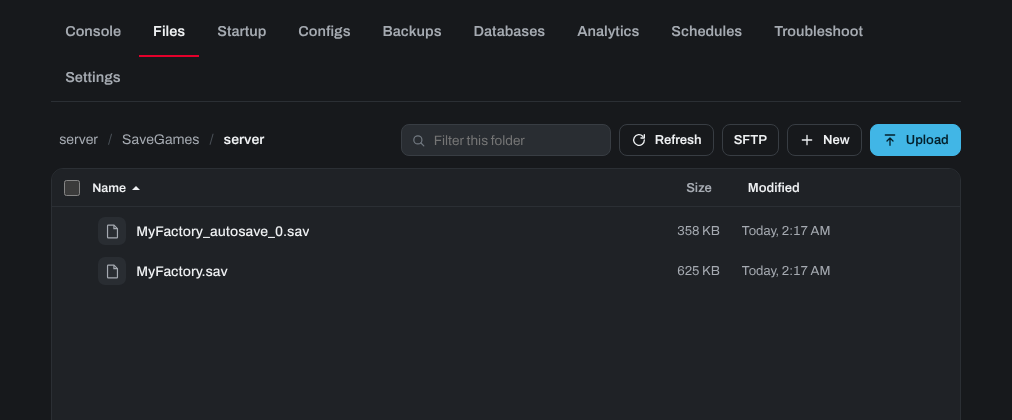
- In Satisfactory, open Server Manager, select your server and open Manage Saves. Find your save under its session name and load it.
If the save comes from a game with mods, your server needs the same mods: see How to Install Mods on Your Satisfactory Game Server Using Satisfactory Mod Manager.
You're ready to join your server from Server Manager.
Need help? Open a support ticket and we'll take a look.