
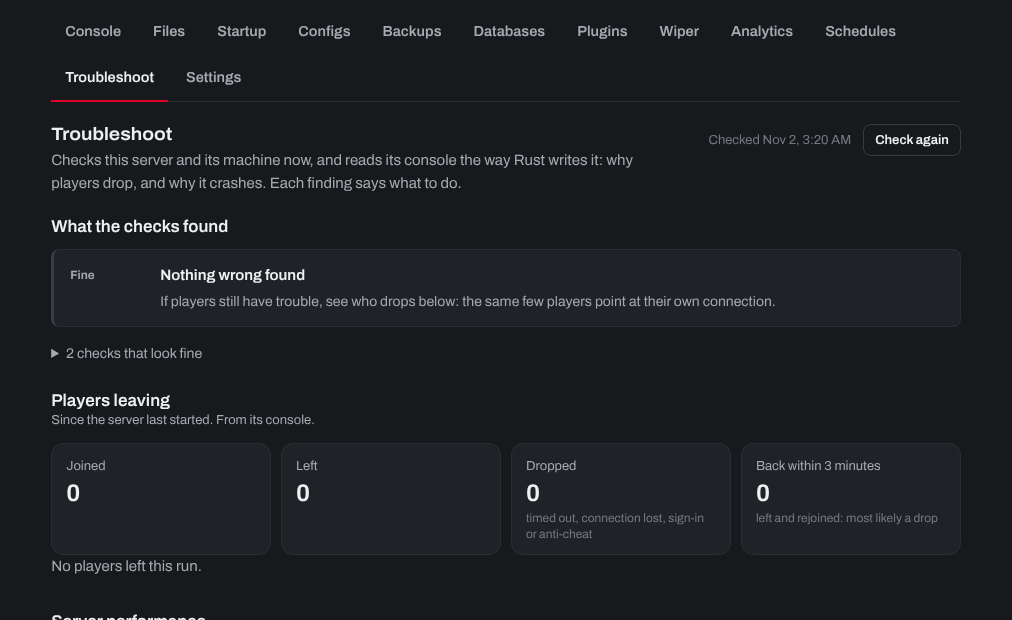
When your server won't start, crashes or players keep dropping, start with the Troubleshoot tab. It checks your server and its machine, reads the console the way your game writes it, and says what to do about each finding.
- Sign in to the control panel at panel.chicagoservers.co, open your server and open the Troubleshoot tab.
- Read What the checks found. Click Check again after you've changed something.
- Players leaving shows who timed out or lost connection since the last start: the same few players dropping usually points at their own connection.
- Crashes and failed starts lists the last 14 days, with the most likely cause of each.
Other things to try
- Read the last lines on the Console tab: the error that stopped the server is usually there.
- Undo your last change: a new mod or plugin is the most common cause. Remove it and start the server again.
- After a game update, update your server too (Update now on the Steam update bar). Players can't join a server on an older version.
- Click Validate on the Steam update bar, or Update and validate files on the Settings tab, to check every game file and repair anything missing or damaged.
- Still stuck? The Backups tab can put back a backup from before the problem started.
Need help? Open a support ticket and we'll take a look.