
The control panel is at panel.chicagoservers.co. Sign in with your panel username (or the email address on your account) and your password. Your login is in the welcome email you received when you ordered, and you can also open the panel from the client area.
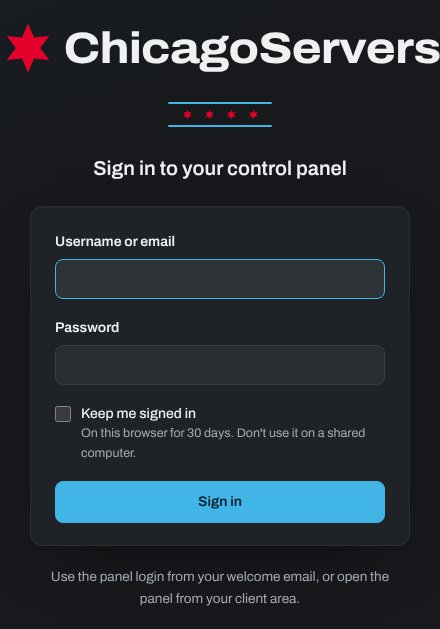
Tick Keep me signed in to stay signed in on that browser for 30 days. Don't use it on a shared computer.
Forgot your password?
- On the sign-in page, click Forgot password?
- Enter your username or the email address on your account and click Email me a link.
- Open the email and click the link to choose a new password. The link works for one hour. Nothing after a few minutes? Check your spam folder.
No access to that email any more? Open a support ticket.
Changing your password or email
- Click Account in the menu on the left.
- Enter your current password, then the new password (at least 10 characters) or your new email address.
- Click Save account.
Your panel password is also your SFTP password: SFTP picks up a new password within a minute.
Need help? Open a support ticket and we'll take a look.