
The Schedules tab runs tasks on your server at set times: a daily restart with a warning in chat first, a backup, a game update or a wipe.
- Sign in to the control panel at panel.chicagoservers.co, open your server and open the Schedules tab.
- Under Add a scheduled task, give the task a name and choose When: every day, on days of the week, once a month, every few hours, or once. Times are Chicago time.
- Add the Steps, in order. For a restart with a warning:
- Send console commands: a message to players, for example
say The server restarts in 5 minutes(the right command depends on your game). - Wait: 5 minutes.
- Restart the server.
- Send console commands: a message to players, for example
- Click Add task.
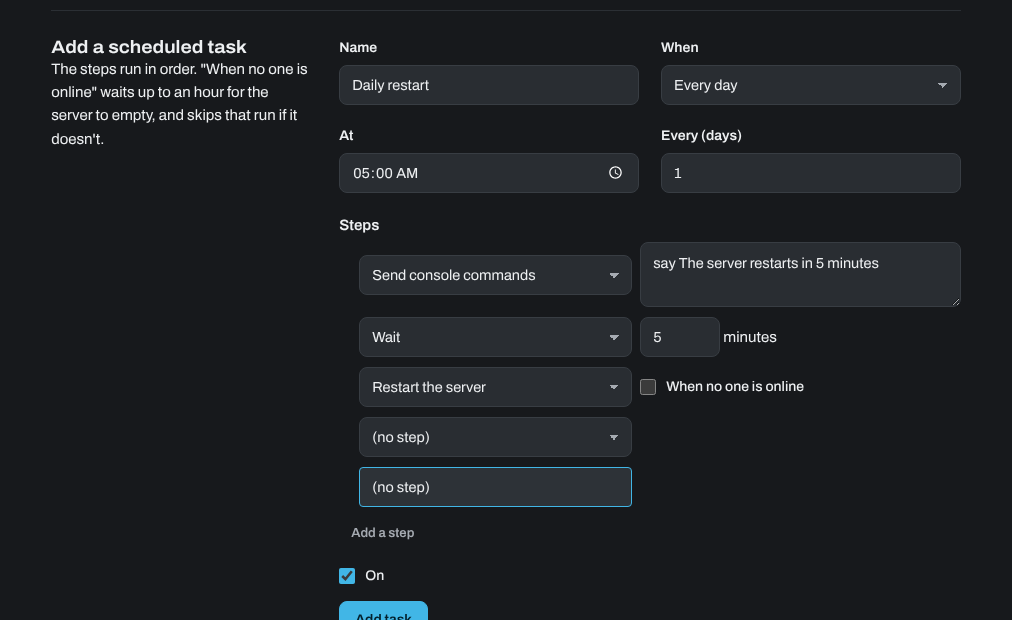
Other steps are Start or Stop the server, Make a backup, Update the game (Steam), Install a game update (such as a Rust wipe or uMod) and Reinstall the server. Tick When no one is online on a step to wait up to an hour for the server to empty; the run is skipped if it doesn't.
Your tasks are listed on the same tab, where you can edit them, run them now or switch them off.
Need help? Open a support ticket and we'll take a look.