
Two-factor authentication asks for a code from an app on your phone after your password, so a stolen or guessed password isn't enough to get into your account.
- Install an authenticator app on your phone, such as Google Authenticator, Microsoft Authenticator or Authy.
- Sign in to the control panel at panel.chicagoservers.co and click Account in the menu on the left.
- Under Two-factor authentication, click Set up two-factor authentication.
- Scan the QR code with the app, then type the 6-digit code the app shows to confirm.
- Save the recovery codes the panel shows you somewhere safe. Each one lets you sign in once if you lose your phone.
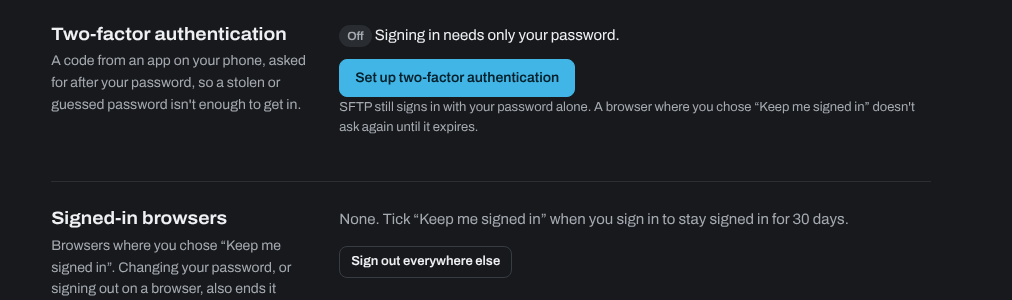
From then on, the panel asks for a code from the app each time you sign in. A browser where you chose Keep me signed in doesn't ask again until that expires. SFTP still signs in with your password alone.
Lost your phone and your recovery codes? Open a support ticket from the email address on your account.
Need help? Open a support ticket and we'll take a look.