
Your tModLoader server gets its mods from the Steam Workshop. You add them on the Mods tab, and the server downloads them and keeps them up to date by itself.
- Sign in to the control panel at panel.chicagoservers.co and open your tModLoader server.
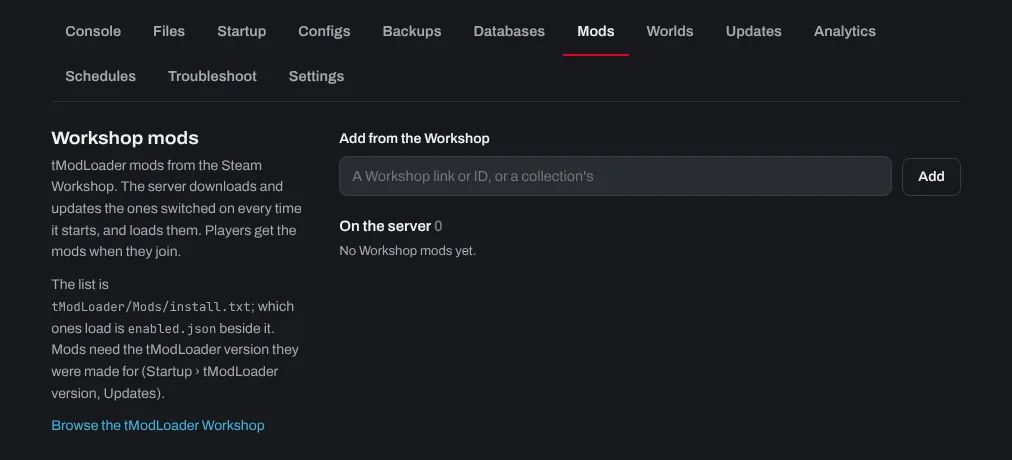
- Open the Mods tab.
- Find the mod on the Workshop (click Browse the tModLoader Workshop), and copy the link to its page, or its ID (the number at the end of the link).
- Paste it under Add from the Workshop and click Add. A Workshop collection's link adds every mod in it.
- Restart the server. It downloads the new mods as it starts.
Mods that need other mods (dependencies) need those added too: the mod's Workshop page lists them under Required items.
At every start, the server checks the Workshop and updates its mods. Players get the same mods when they join, so they don't need to download anything first.
To stop using a mod, click Switch off next to it under On the server (it stays on the list for later) or Remove, then restart the server. Worlds you played with a mod can lose that mod's items and blocks when it's removed, so make a backup on the Backups tab first.
The list of mods is kept in tModLoader/Mods/install.txt, and the ones switched on in enabled.json beside it, if you'd rather edit them on the Files tab.
Need help? Open a support ticket and we'll take a look.