
The Worlds tab lists the worlds on your server. The server plays one world at a time, and you can switch between them, start a new one or bring one from your computer.
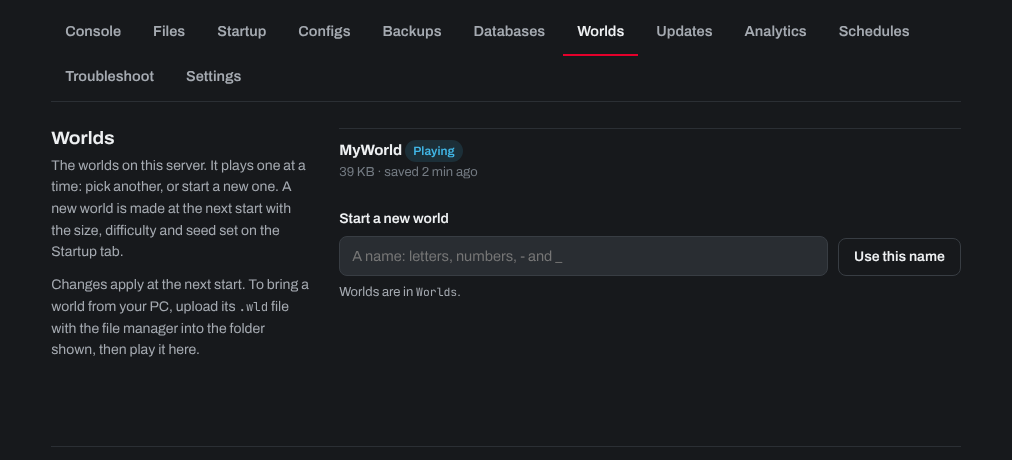
Switching worlds
Click Play next to the world, then restart the server.
Starting a new world
- On the Startup tab, choose the New world size, New world difficulty and, if you like, a New world seed, and click Save startup.
- On the Worlds tab, type a name under Start a new world (letters, numbers, - and _) and click Use this name.
- Restart the server. The world is made as the server starts, which can take a minute or two for a large world.
Your other worlds stay on the server, so you can go back to them with Play.
Uploading a world from your computer
- Find the world on your computer. On Windows, Terraria keeps its worlds in
Documents\My Games\Terraria\Worlds(a world played through Steam Cloud has to be moved off the cloud in Terraria's world menu first). Each world is a.wldfile. - Stop the server.
- Open the Files tab, go to the folder shown at the bottom of the Worlds tab (
Worlds) and upload the.wldfile. - If the file name has anything other than letters, numbers, - and _ before
.wld(a space or an apostrophe, for example), rename it on the Files tab so it only has those, and keep.wldat the end. - On the Worlds tab, click Play next to it, then start the server.
To download a world from the server, right-click its .wld file on the Files tab and choose Download. See How to use the Files tab (file manager).
Need help? Open a support ticket and we'll take a look.