
The Files tab is your server's file manager. You can upload, download, edit, move and unpack files without any other program.
- Sign in to the control panel at panel.chicagoservers.co, open your server and open the Files tab.
- Click a folder to open it. The path at the top takes you back.
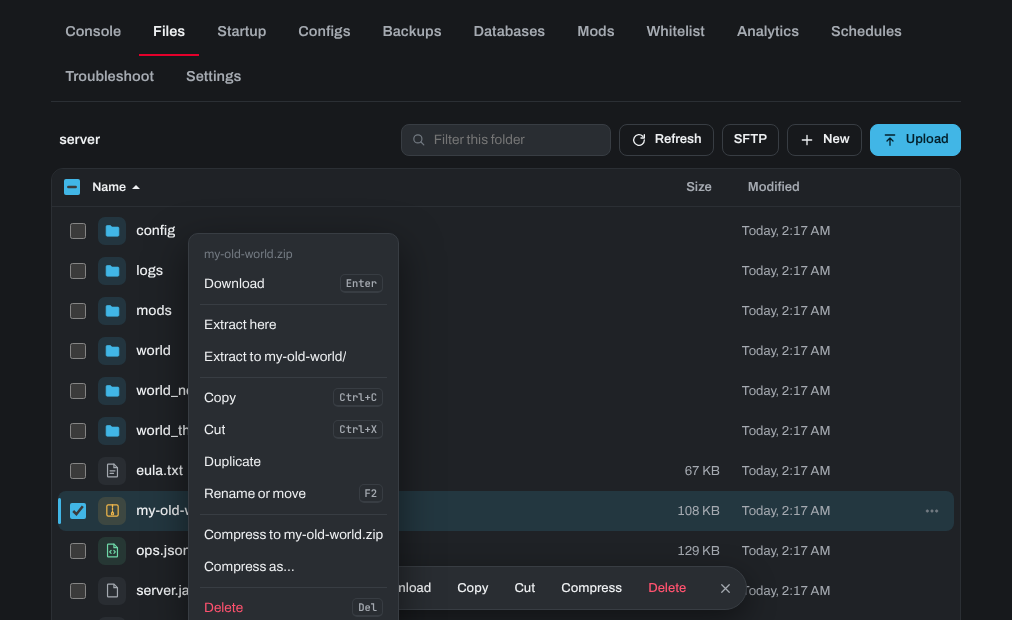
- Upload: click Upload, or drag files or whole folders from your computer onto the page.
- Edit: click a text file (a config, a .json, a .txt) to open it in the editor. Press Save (or Ctrl+S) when you're done.
- More: right-click a file, or tap the ⋯ button, for Download, Extract here, Copy, Cut, Rename or move, Compress to .zip and Delete. Select several files with their tick boxes to work on them together.
- New: make a new file or folder.
Stop the server before you change its world files or a config file the game rewrites when it shuts down. Otherwise the game may overwrite your changes.
For big uploads, an SFTP program such as FileZilla is faster: click SFTP on the Files tab for your login. See How to connect to your server's SFTP.
Need help? Open a support ticket and we'll take a look.