
On ChicagoServers, players join your Windrose server with its invite code, not an IP address.
- Sign in to the control panel at panel.chicagoservers.co and open your Windrose server.
- Find your server's current invite code. It's in any of these places:
- The Configs tab: choose Server description and look at Current invite code.
- The Updates tab: click Install next to Show the join code. The code appears on the Console tab.
- The Console tab, in the server's output once its world has loaded.
- In Windrose, choose Play, then Connect to Server, and paste the code. Enter the join password if your server has one: it's on the Startup tab, under Join password (click Show).
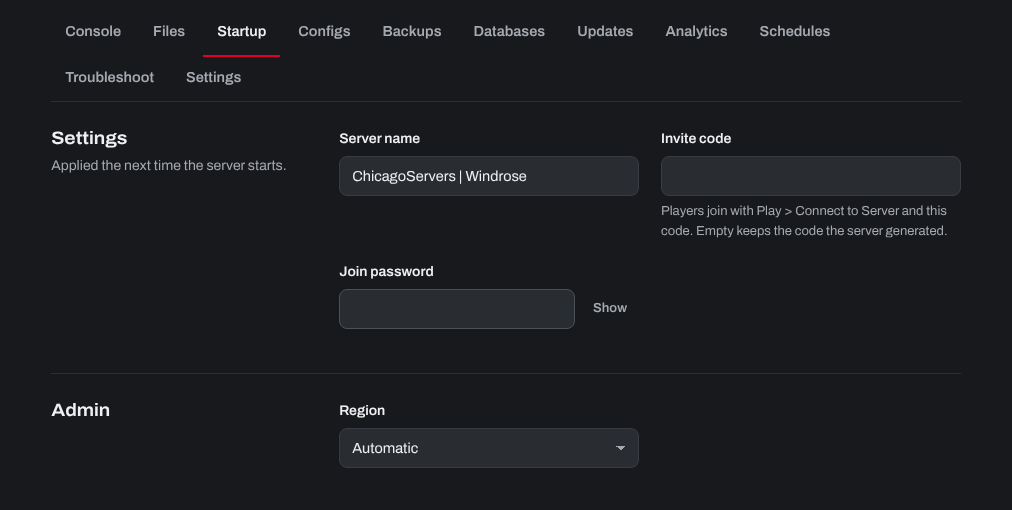
Invite codes are case-sensitive, so copy and paste them. To choose your own code, type it under Invite code on the Startup tab (at least 6 letters or numbers), click Save startup and restart the server. Leave that field empty to keep the code the server made.
A brand-new server makes its invite code at its first start, and the server must have finished loading its world before players can join: see Common Windrose Server Issues (and How to Fix Them).
Need help? Open a support ticket and we'll take a look.