
Admin access on your Arma Reforger server lets you manage gameplay, enforce rules and use admin commands. Here's how to set it up in the control panel.
Step 1: Set the admin password
- Sign in to the control panel at panel.chicagoservers.co and open your Arma Reforger server.
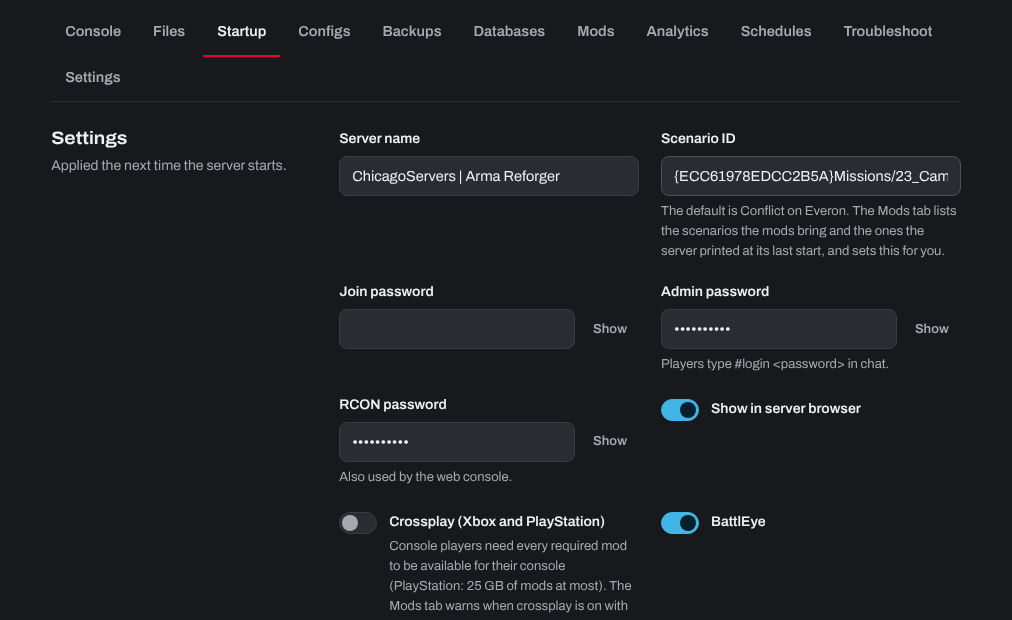
- Open the Startup tab and type the password you want in Admin password (no spaces). Click Show to see the current one.
- Click Save startup, then Restart at the top of the page.
Step 2: Log in as admin in game
- Launch Arma Reforger and join your server.
- Open the chat, type
#login YourAdminPasswordand send it. - You'll see a message confirming that you're an admin.
Optional: Permanent admins by Steam ID
Players on the server's admins list can log in as admin with just #login, without the password:
- Find each player's SteamID64, for example with steamid.io. (The list also takes Bohemia identity IDs.)
- Open the Configs tab, choose Server config and click Text.
- In the
"game"section, add (or edit) the admins list, for example:"admins": [ "76561198000000000" ]. Each ID goes in quotes, separated by commas. - Click Save, then restart the server.
Useful admin commands
#players: lists the players on the server with their player IDs.#kick <playerId>: kicks a player (they can join again).#ban create <playerId> <seconds> <reason>: bans a player for that many seconds (0bans for good; the reason is optional).#ban listlists bans and#ban remove <identityId>lifts one.#restart: restarts the scenario. Players stay connected.#shutdown: shuts down the server.#logout: ends your admin session.
Use the player IDs #players shows, not player names.
Troubleshooting
- Wrong password: check the admin password on the Startup tab, and restart the server after changing it.
- Permanent admins not working: check that the IDs are right and that the JSON is valid (quotes and commas).
Need help? Open a support ticket and we'll take a look.