
Mods make your Arma Reforger server stand out. The control panel's Mods tab adds them straight from the Arma Reforger Workshop, along with every mod they need, so there's nothing to download or edit yourself.
- Sign in to the control panel at panel.chicagoservers.co and open your Arma Reforger server.
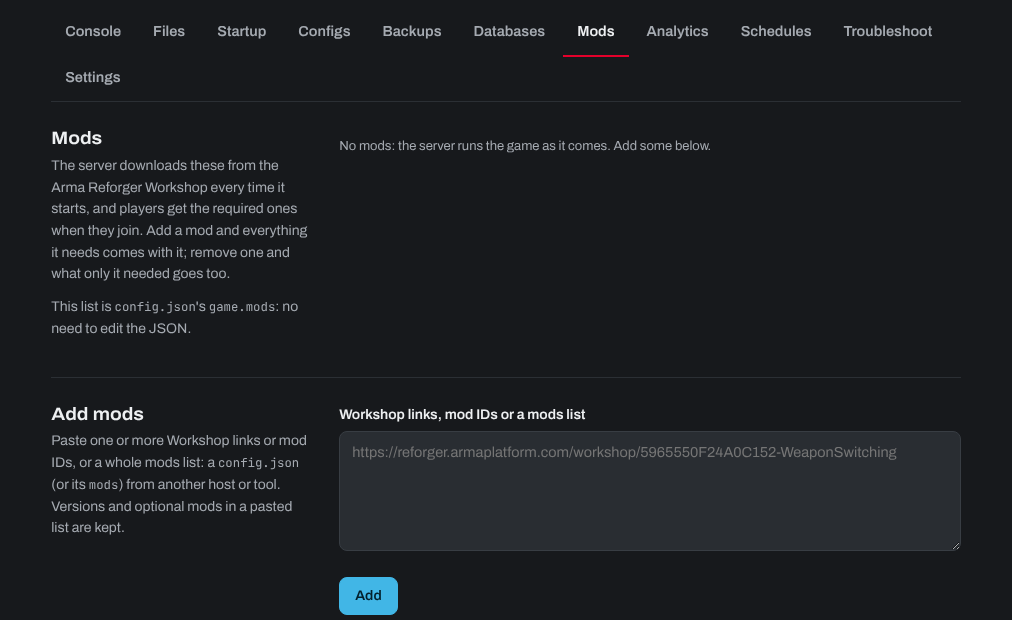
- Open the Mods tab.
- Under Add mods, search the Workshop, or paste one or more Workshop links or mod IDs, and click Add. You can also paste a whole mods list from another host or tool (a config.json, or just its mods).
- Click Restart at the top of the page. The server downloads the mods every time it starts, and players get the ones they need when they join.
Is a mod downloaded?
Each mod in the list says Downloaded (it's on the server and loads at the next start) or Downloads at the next start (the server gets it from the Workshop when it starts, which can take a few minutes for big mods).
Moved from the old panel?
If your server came from our old panel, the Mods tab checks its files and offers what's needed, one click each:
- Bring them over: another config file in your server's folder (such as
serverconfig.jsonfrom the old panel) lists mods that aren't in this list. They're added with their versions, and optional mods stay optional. - Add them to the list: mods are downloaded on your server but aren't in the list, so the server doesn't load them. Delete the downloads removes them instead, to free space (stop the server first).
- Move them: mods in the list were downloaded to the old panel's folder. Moving them to where the server looks now means they aren't downloaded again (stop the server first).
If the Mods tab says your server still starts the way it did on the old panel, open the Startup tab and click Check and switch. It brings your mods list and the mods already downloaded along, so nothing is downloaded twice.
Additional tips
- Mod updates: the server fetches the newest version of each mod every time it starts. Just restart to update.
- Scenario mods: some mods come with their own scenarios. Under Scenario on the Mods tab, choose the one you want and click Play this scenario.
- Removing a mod: remove it from the list, and mods only it needed go too.
- Crossplay: console players can only join if every required mod is available for their console. The Mods tab warns you when that may be a problem.
Need help? Open a support ticket and we'll take a look.