
Customizing your Arma Reforger server is a great way to stand out. Its name, passwords and visibility are on the Startup tab of the control panel, so there's no JSON to edit.
- Sign in to the control panel at panel.chicagoservers.co and open your Arma Reforger server.
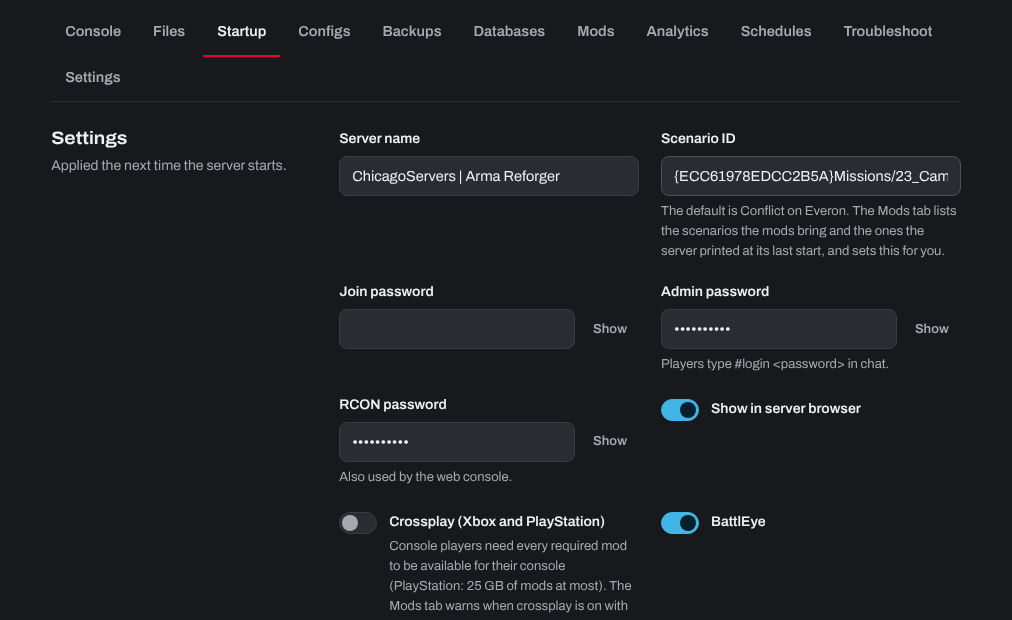
- Open the Startup tab and change the settings you like:
- Server name: the name in the server browser.
- Join password: leave it empty for a public server.
- Admin password: players type
#loginand this password in chat to become admin. - Show in server browser: whether your server is listed publicly.
- Crossplay (Xbox and PlayStation) and BattlEye.
- Click Save startup, then Restart at the top of the page.
More settings (view distances, first person only, AI limit and so on) are on the Configs tab. The scenario the server plays is set on the Mods tab.
Tips
- Use a clear and unique server name to stand out.
- Choose strong passwords to keep others out.
- Restart your server after changing settings.
Need help? Open a support ticket and we'll take a look.