
Palworld, like all Steam games, doesn't update by itself on the server the way it does on your computer. After a Palworld update, update your server so players on the new version can join.
- Sign in to the control panel at panel.chicagoservers.co and open your Palworld server.
- The Steam update bar at the top of the page says when a new version is out. Click Update now. The server stops, updates and starts again by itself; progress shows on the Console tab.
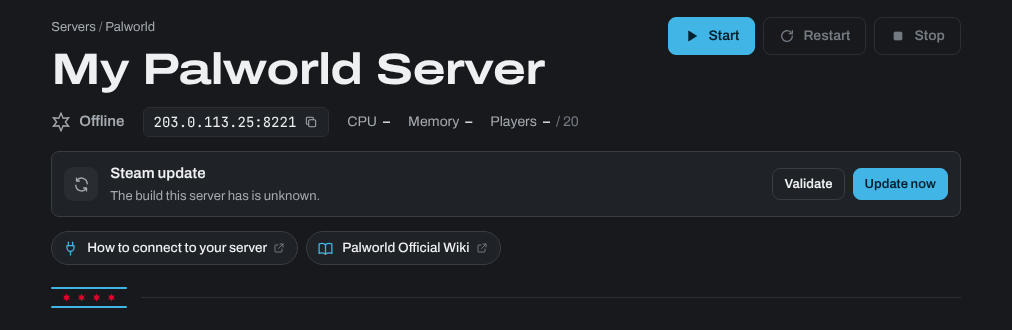
To update at a set time, add a task with the step Update the game (Steam) on the Schedules tab. If anything goes wrong during an update, click Validate on the same bar to check every game file. See How to update your server and switch game versions.
Need help? Open a support ticket and we'll take a look.