
Players on Steam and Mac can join by typing your server's address. Players on Xbox, PlayStation 5 and the Microsoft Store version of the game join from the community server list.
Find your server's address
- Sign in to the control panel at panel.chicagoservers.co and open your Palworld server.
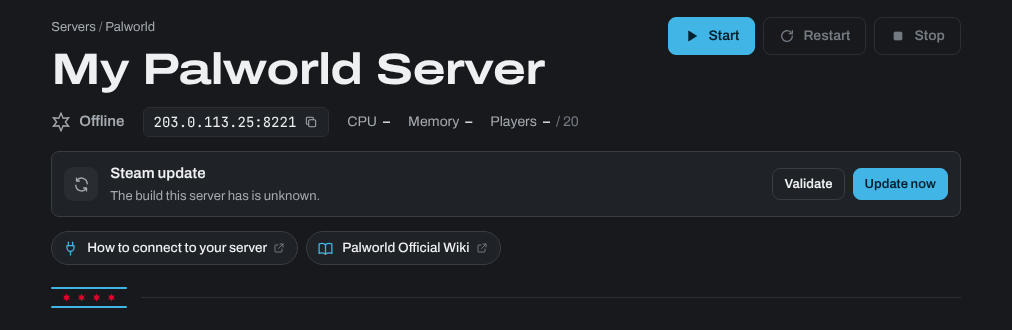
- Its address (IP and port) is at the top of the page, for example
203.0.113.25:8211. Click it to copy it. Start the server if it isn't running.
Join on Steam or Mac
- In Palworld, choose Join Multiplayer Game.
- Paste the address into the connection box, as pictured below, and connect.
- If your server has a join password, enter it when the game asks.

Join on Xbox, PlayStation 5 or the Microsoft Store version
These versions of the game can't connect by address. Players search for your server by its name in the community server list instead. For your server to be listed, List in community servers must be on, on the Startup tab (it's on by default). If you change it, click Save startup and restart the server. To change the name players search for, see How to Change your Server Name and Description on your Palworld server.
Every player needs the same game version as the server. After a Palworld update, update your server: see How to update your Palworld server.
Need help? Open a support ticket and we'll take a look.