
The Backups tab keeps copies of your server you can put back in a couple of clicks, made automatically or whenever you like.
Making a backup now
- Sign in to the control panel at panel.chicagoservers.co, open your server and open the Backups tab.
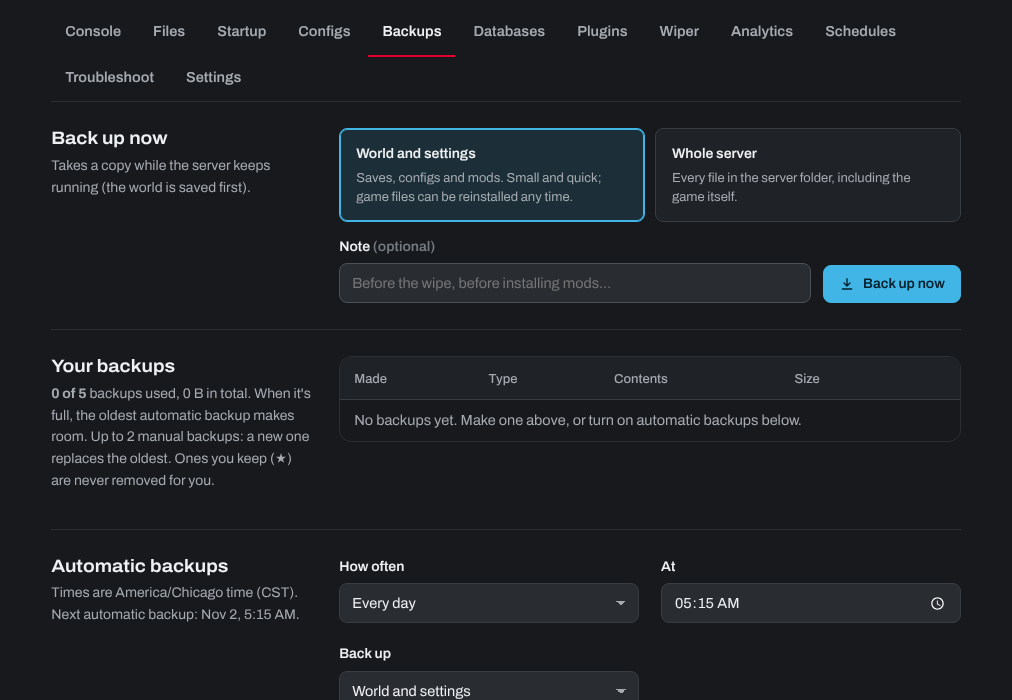
- Under Back up now, choose World and settings (saves, configs and mods: small and quick) or Whole server (every file, the game included). A few games only offer Whole server. Add a note if you like, such as "before the wipe".
- Click Back up now. You can leave the page while it runs.
Most games keep running during a backup, and many save the world first. A few games (such as Windrose) are stopped for the backup and started again right after, so the save files are consistent. The text under Back up now says which applies to your server.
Automatic backups
Automatic backups are off until you turn them on. Under Automatic backups, choose How often (every few hours, every day or every week), the time and what to back up, and click Save schedule. Times are Chicago time.
Restoring a backup
- Under Your backups, click Restore next to the backup.
- Choose Put it back (the server stops, its files are replaced with the backup's, and it starts again if it was running) or Unpack into a folder (the server is left alone, so you can copy back just what you need).
- Leave Save the current files as a restore point first ticked, so you can undo the restore.
How many backups you can keep
The tab shows how many backups your server can keep. When it's full, the oldest automatic backup makes room. Click the star next to a backup to keep it: kept backups are never removed for you. If your plan also limits manual backups, a new manual backup replaces the oldest one you haven't starred, and the panel asks you first.
Next to each backup you can also Download it to your computer or Delete it.
If the tab says backups aren't included with your server, open a support ticket to add them.
Need help? Open a support ticket and we'll take a look.